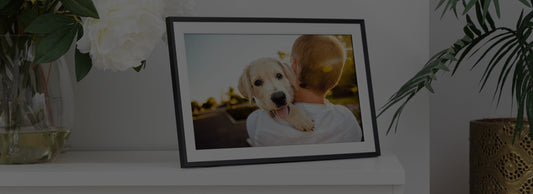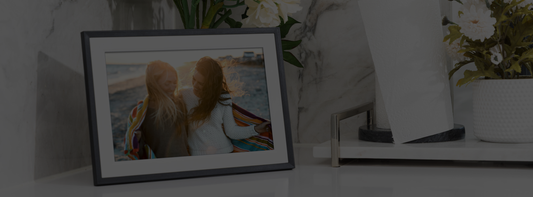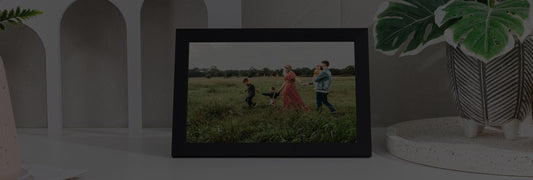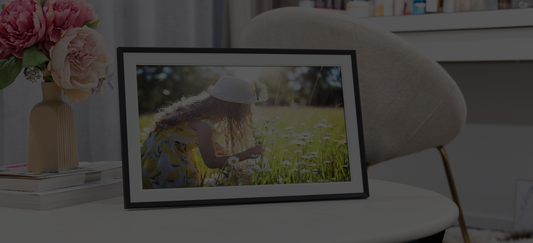

Collage Mode on LuvLink Digital Photo Frames
See More Moments. Feel More Connected.
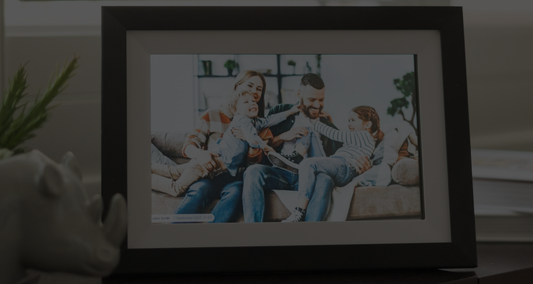
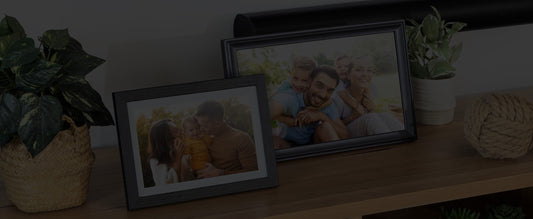
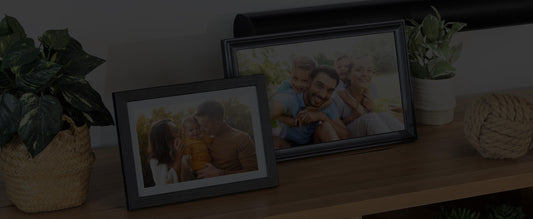
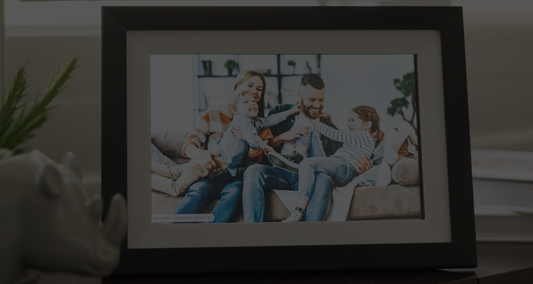
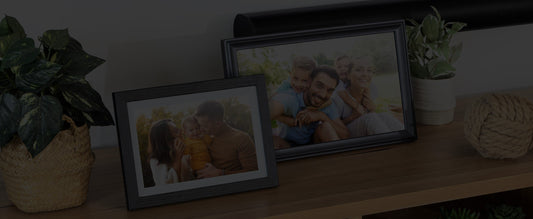
One of the most loved features on LuvLink Digital Photo Frames is the new Collage Mode — a simple but powerful way to enjoy more memories at once.
Powered by the latest software from Frameo, Collage Mode lets your frame display multiple photos on screen at once, automatically arranged in beautiful layouts. It’s included free on all LuvLink Frameo frames and updates automatically.
Whether it’s kids, grandkids, holidays, or everyday moments, Collage Mode brings your memories to life in a way that feels warmer, fuller, and more personal.
What Is Collage Mode?
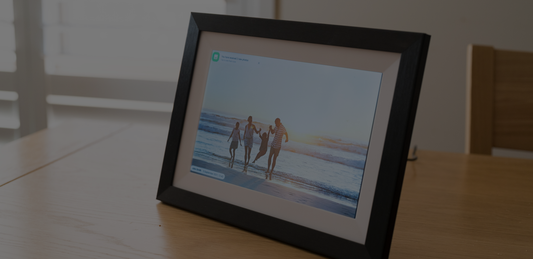
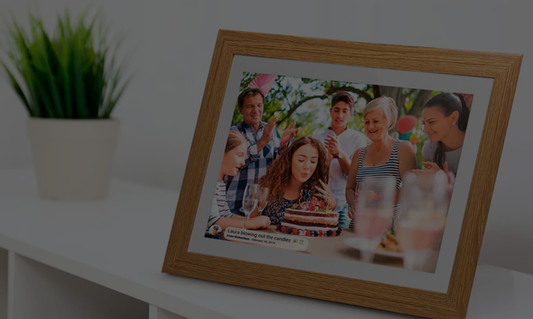
Collage Mode is a slideshow setting that lets your LuvLink frame display up to 6 photos at once on a single screen.
Instead of seeing just one image at a time, your frame intelligently combines photos into tasteful layouts — no design skills required. Frameo automatically selects layouts that look balanced and visually pleasing, so every collage feels intentional and elegant.
✨ More photos
✨ More moments
✨ More smiles — every time you walk past the frame
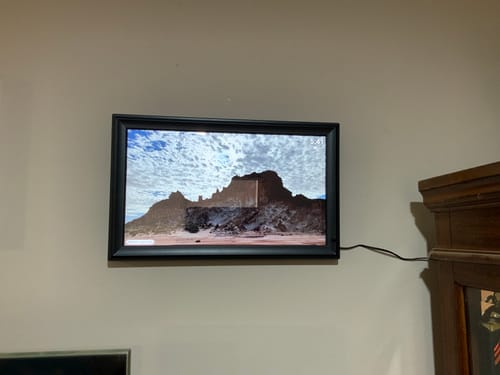
“Love the size of this one. I now have 2 and love how easy it is to display all my photos without the clutter of many frames”
Why People Love Collage Mode
Collage Mode is especially popular with families because it:
👨👩👧👦 Shows more loved ones at once
📸 Brings variety to your slideshow
💖 Feels more lively and engaging than single-photo slides
🎁 Makes gifted frames feel instantly full and meaningful
It’s perfect for grandparents, busy households, and anyone who loves seeing lots of memories without waiting for the slideshow to cycle.
How to Turn On Collage Mode (It Takes Seconds)

Turning on Collage Mode on your LuvLink frame is easy:
-
Tap the screen once to wake the menu
-
Tap the Settings ⚙️ icon
-
Select Slideshow from the menu
-
Enable Collage Mode, then choose your maximum number of photos (up to 6)
That’s it. Your frame will instantly begin showing collages as part of the slideshow.
How to interact with a photo in Collage mode
To quickly delete or hide a photo while being in collage mode, simply tap the photo in question and use the quick menu options.
Best Collage Settings by Frame Size
For the best viewing experience, we recommend adjusting the number of photos based on your frame size:
✔ Very Large Frames (21.5”)
→ 3–6 photos look stunning and immersive
✔ Large Frames (15.6)
→ 2–3 photos is the sweet spot
✔ Smaller Frames (10.1")
→ 1–2 photos keeps things clear and uncluttered
You can change this setting anytime — nothing is locked in.
Full Control, Even in Collage Mode
Collage Mode doesn’t limit functionality at all. You can still:
-
❤️ React to photos
-
✏️ Adjust display settings
-
🙈 Hide images
-
🗑️ Delete photos
Simply tap the specific photo within the collage and manage it as normal. Easy, intuitive, and stress-free — especially for less tech-savvy users.
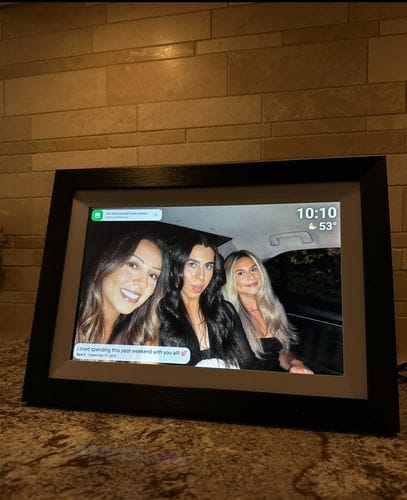
“I recently purchased the LuvLink Digital Photo Frame in black for my best friend, and I couldn't be happier with my decision! It brought my best friend to tears and allows us to cherish our precious memories in a whole new way. This photo frame makes the most PERFECT gift for a loved one I swear they will adore it. It fits in perfectly with any living space, it's easy to use, the display is crystal clear, and it helps us celebrate and cherish every precious moment. Throughout the day, I find my...”
Included Free on All LuvLink Digital Photo Frames
Because LuvLink is an official Frameo partner in Australia, all compatible frames receive automatic software updates — including Collage Mode — at no extra cost.
- No subscriptions.
- No downloads.
- No complicated setup.
Just a smarter, more beautiful way to enjoy your photos.
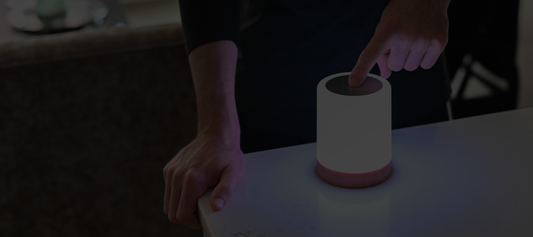
In the United States? Discover the LuvLink Friendship Lamp.